> ## Documentation Index
> Fetch the complete documentation index at: https://docs.vizkraft.com/llms.txt
> Use this file to discover all available pages before exploring further.
# Index your data
> Let Vizkraft read your schema so chat answers, charts, and suggestions become more useful.
Indexing helps Vizkraft understand the structure of a supported database connector before your team starts deeper analysis.
This guide applies to **SQL and MongoDB connectors**. HubSpot CRM connectors use [catalog sync](/guides/crm-sync) instead of indexing.
## Why indexing matters
When indexing is available for a connector, Vizkraft can:
* Read tables or collections and their fields.
* Build a summary of the database structure.
* Show indexing progress while it runs.
* Suggest important tables for business analysis.
* Generate better chart and dashboard suggestions after indexing completes.
* Seed [evaluation](/features/evaluation-and-learnings) golden questions for SQL connectors.
## Where to find indexing
1. Open `Connectors`.
2. Select the connector you want to work with.
3. Open **Indexing** from the connector row (or the primary action button).
## What you will see on the indexing page
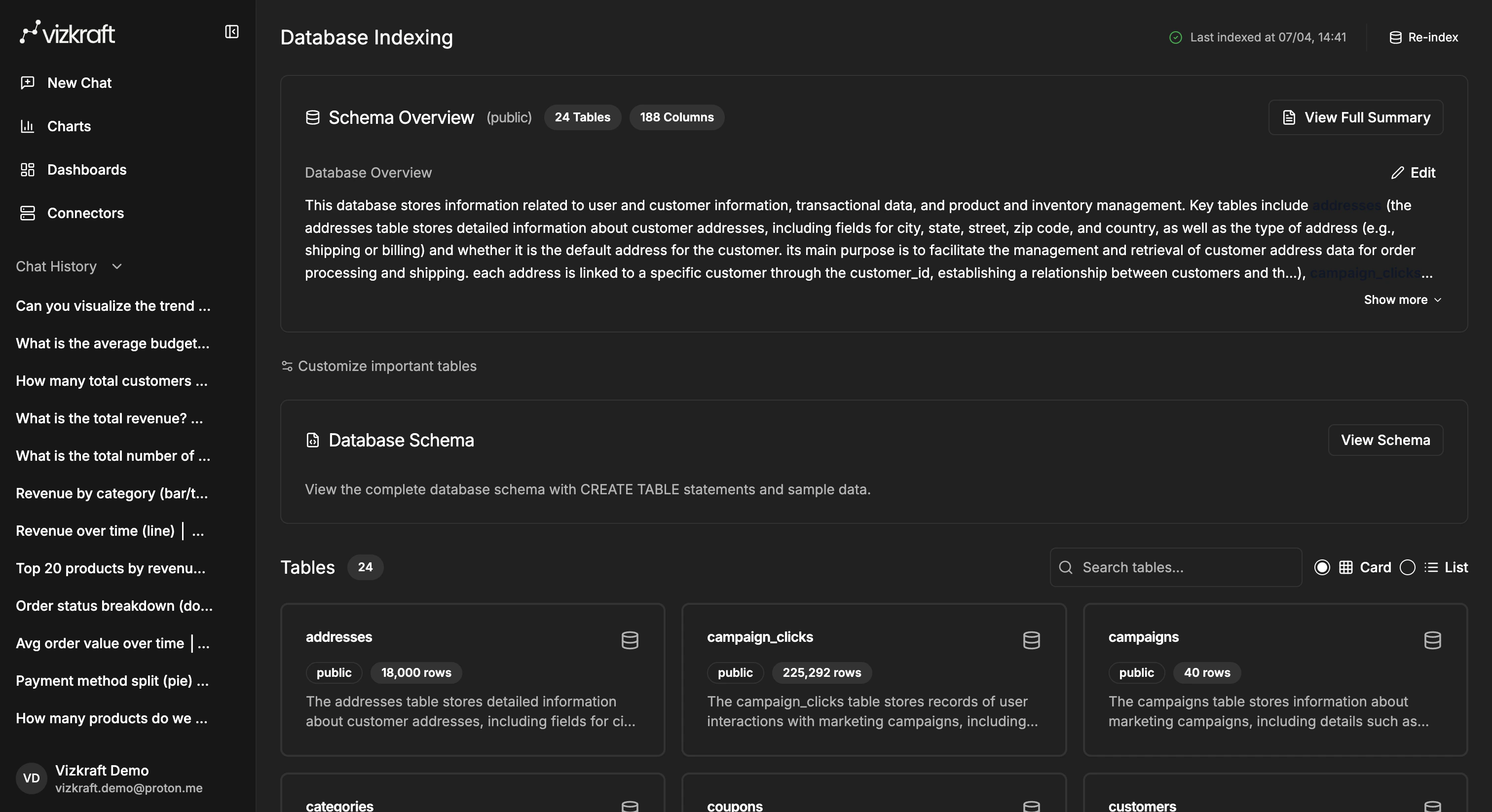
### Database summary
This gives you a high-level view of the source that was connected.
 ### Table or collection list
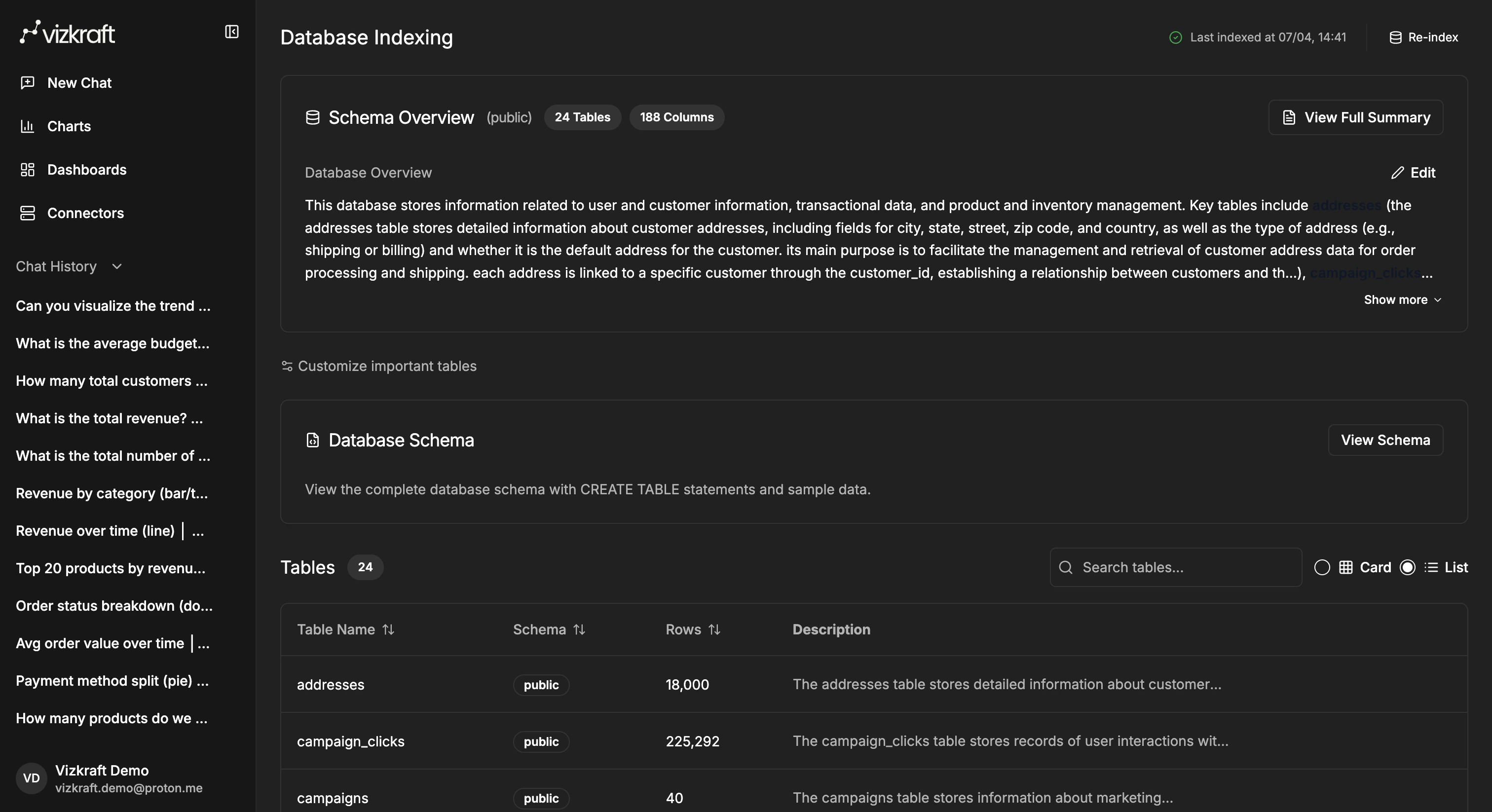
You can review which tables (or MongoDB collections) Vizkraft discovered and use that list to confirm the source looks correct.
### Table or collection list
You can review which tables (or MongoDB collections) Vizkraft discovered and use that list to confirm the source looks correct.
 ### Progress tracking
If indexing is in progress, you can monitor status directly from the page instead of guessing whether the job is still running.
### Important tables
If your schema is large, use the important tables workflow to steer Vizkraft toward the tables that matter most to your business users.
Important tables also influence [suggested charts and dashboards](/features/suggested-charts-and-dashboards). Mark the tables your team analyzes most often before waiting for suggestions.
## MongoDB indexing
MongoDB connectors follow the same indexing workflow as SQL sources, with a few differences in the UI:
* Vizkraft discovers **collections** instead of SQL tables.
* Field types and sample documents are indexed rather than column definitions and `CREATE TABLE` statements.
* Important tables selection applies to the collections you want Vizkraft to prioritize.
After MongoDB indexing completes, suggested charts, evaluation, and connector memory work the same way as for SQL connectors.
## View the database schema
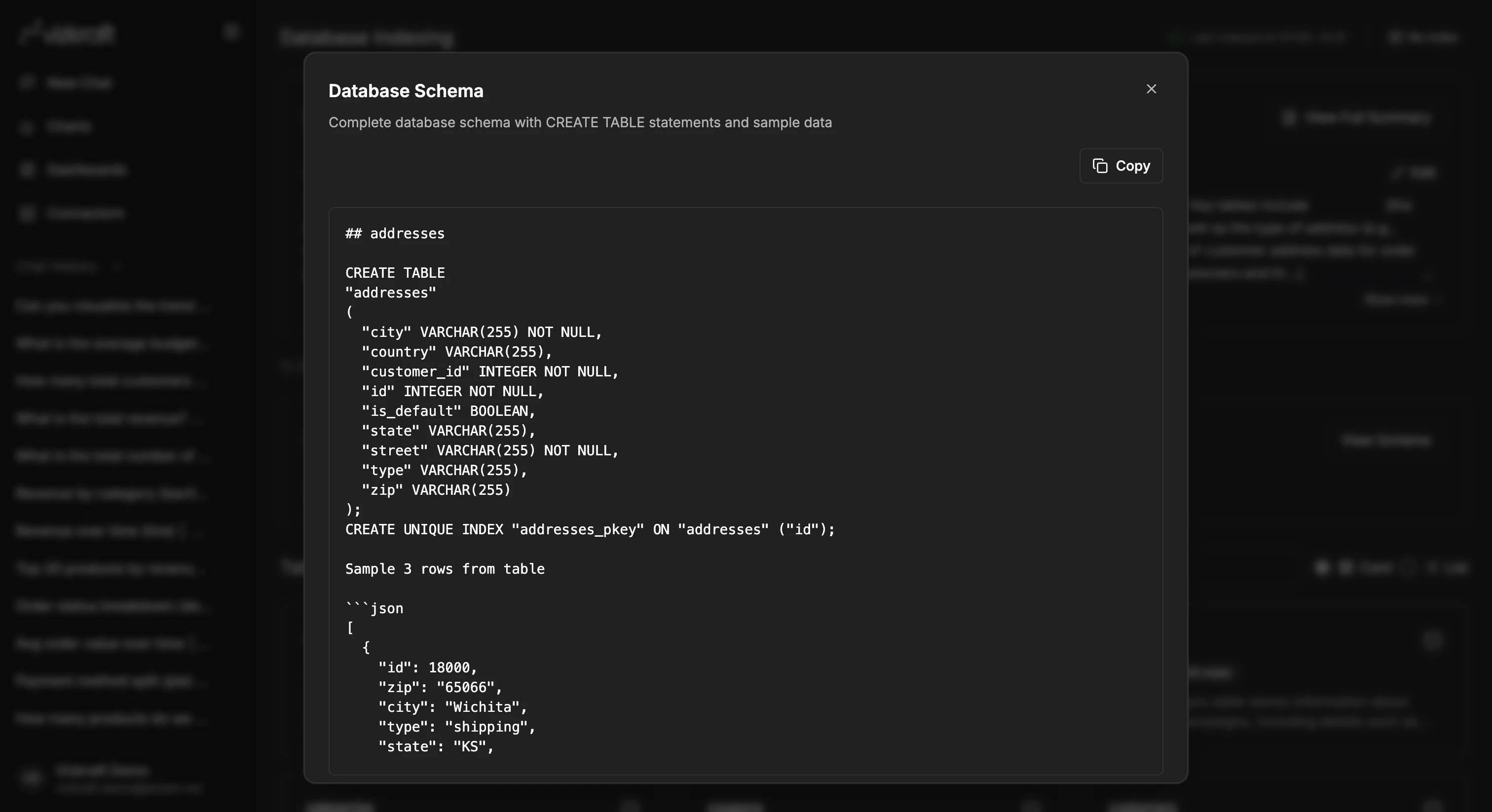
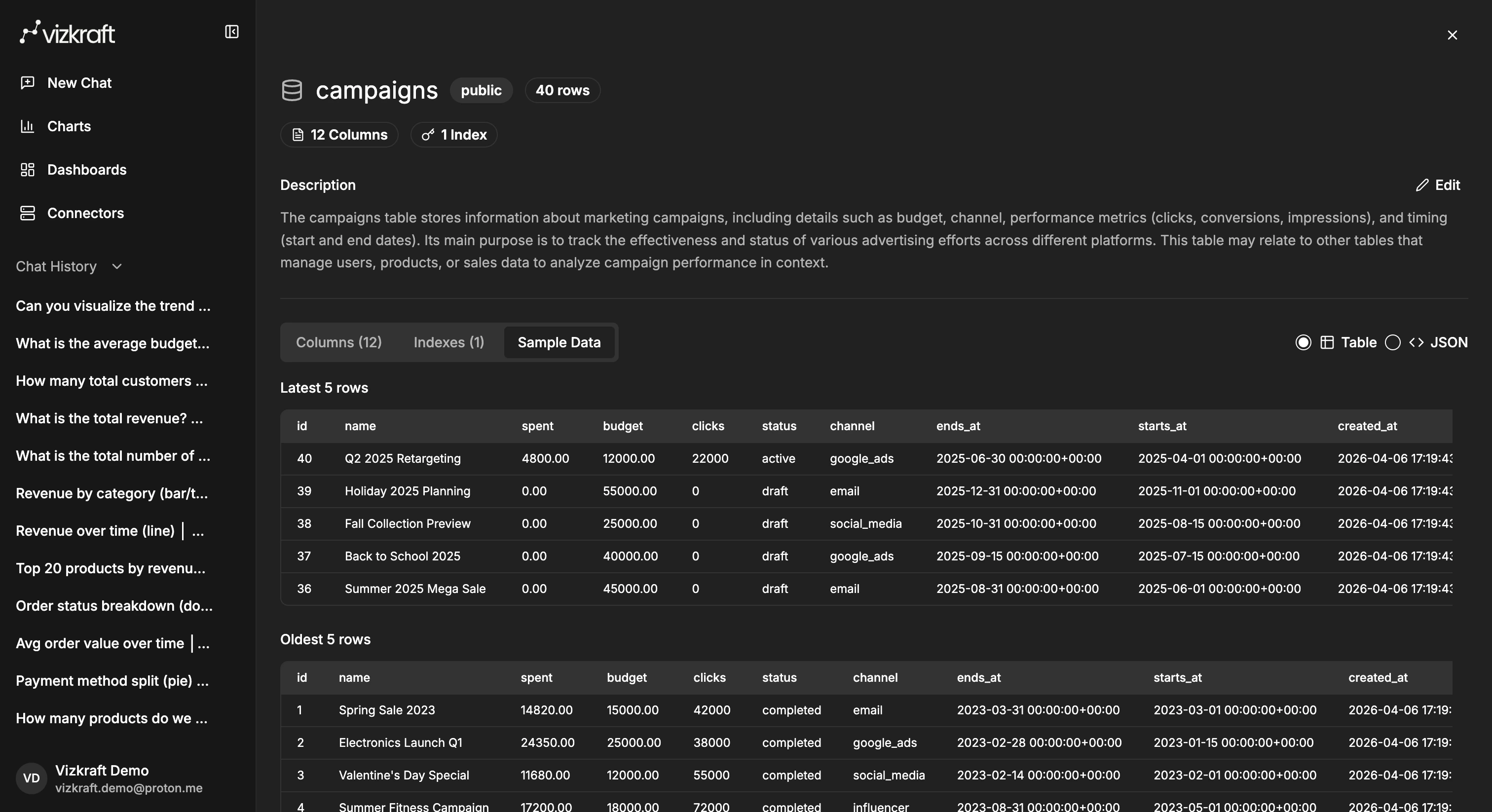
The schema viewer gives you a more complete look at the indexed source, including `CREATE TABLE` statements (for SQL) and sample records.
### Progress tracking
If indexing is in progress, you can monitor status directly from the page instead of guessing whether the job is still running.
### Important tables
If your schema is large, use the important tables workflow to steer Vizkraft toward the tables that matter most to your business users.
Important tables also influence [suggested charts and dashboards](/features/suggested-charts-and-dashboards). Mark the tables your team analyzes most often before waiting for suggestions.
## MongoDB indexing
MongoDB connectors follow the same indexing workflow as SQL sources, with a few differences in the UI:
* Vizkraft discovers **collections** instead of SQL tables.
* Field types and sample documents are indexed rather than column definitions and `CREATE TABLE` statements.
* Important tables selection applies to the collections you want Vizkraft to prioritize.
After MongoDB indexing completes, suggested charts, evaluation, and connector memory work the same way as for SQL connectors.
## View the database schema
The schema viewer gives you a more complete look at the indexed source, including `CREATE TABLE` statements (for SQL) and sample records.
 ## Inspect a table in detail
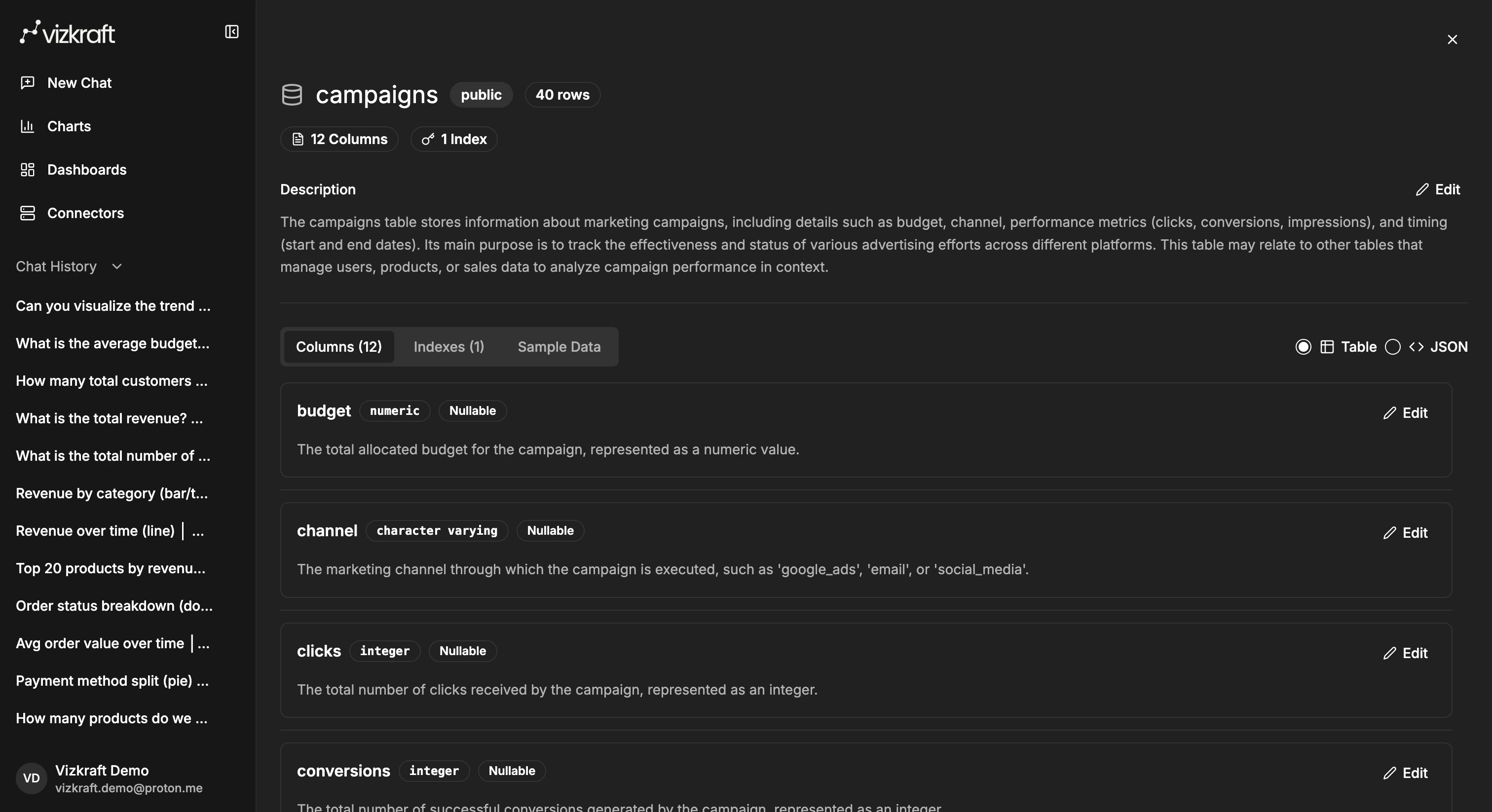
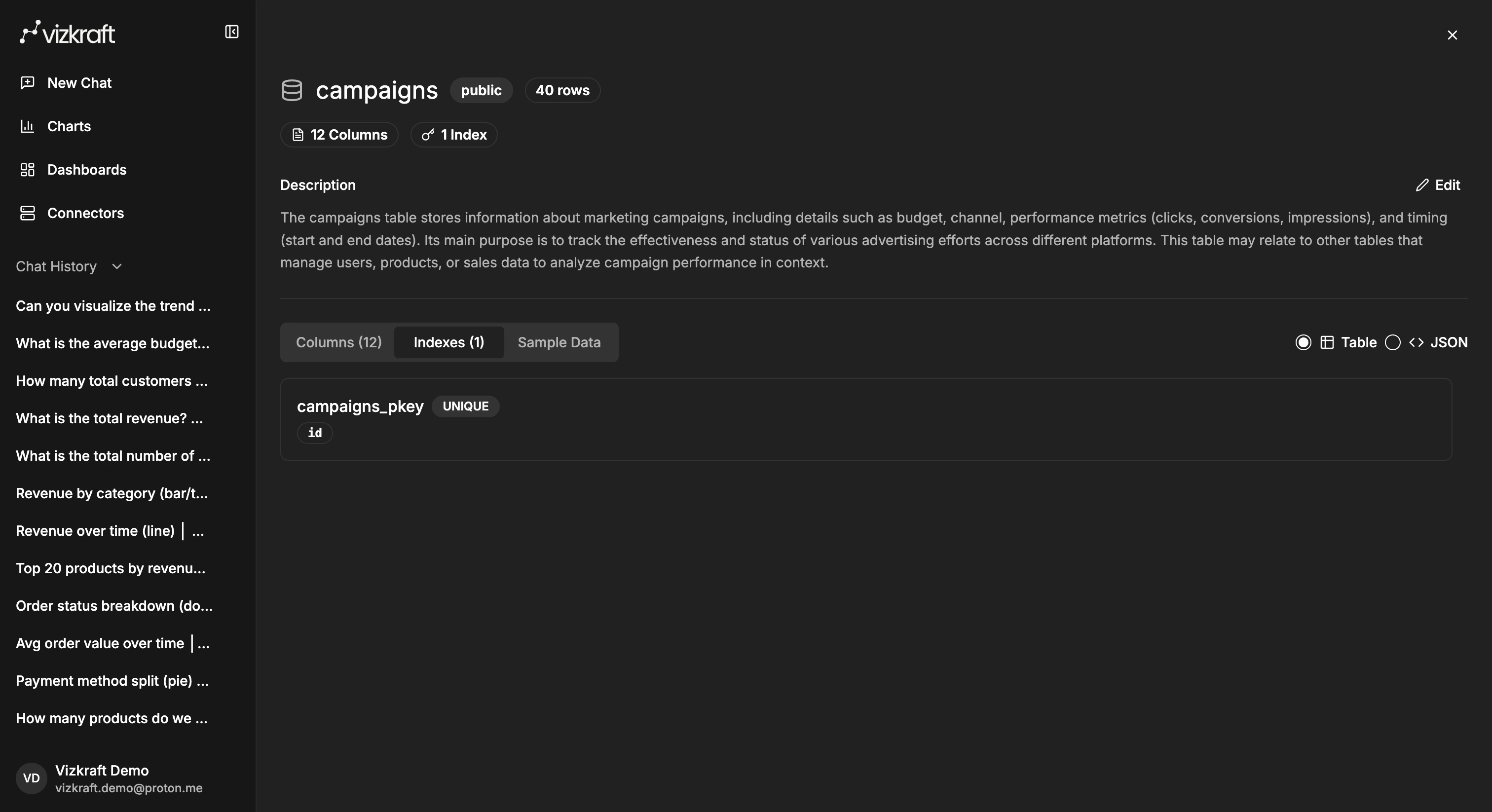
From the table list, open a table like `campaigns` to review the fields Vizkraft discovered and understand how the source is structured.
### Columns
## Inspect a table in detail
From the table list, open a table like `campaigns` to review the fields Vizkraft discovered and understand how the source is structured.
### Columns
 ### Indexes
 ### Sample data
 ## When suggested content appears
Suggested charts and suggested dashboards are tied to connector analysis. In practice:
1. Add the connector.
2. Run indexing.
3. Select important tables if prompted.
4. Wait for Vizkraft to prepare suggestions.
5. Review them in `Charts` and `Dashboards`.
If you do not see suggestions immediately, give indexing time to finish and then refresh those library pages.
## When to re-index
Re-index when:
* New tables, collections, or columns were added to the source.
* A connector was changed or replaced.
* Chat answers are missing newly available data.
* Suggested charts and dashboards no longer reflect the current schema.
## Indexing runs and your plan
Every plan includes a monthly allowance of indexing runs. One run is consumed each time you add a new connector (the first index runs automatically) or click **Re-index** on an existing connector.
Indexing runs are deliberately separate from query credits — re-indexing never spends the credits you use for chat questions.
| Plan | Indexing runs per billing cycle |
| ---------- | ------------------------------- |
| Pro | 5 |
| Business | 20 |
| Ultra | 50 |
| Enterprise | Unlimited |
A few things to know:
* Your remaining indexing runs are shown on `Profile → Usage` next to your subscription credits and on `Profile → Billing` under your plan summary.
* The counter resets at the start of every billing cycle, on the same date your subscription credits renew.
* If your allowance is exhausted, the next attempt to add a new connector or click **Re-index** is rejected with a clear error message until the cycle resets — your existing connectors keep working as normal.
* Indexing started by Vizkraft on your behalf (for example, automatic schema refreshes scheduled by your account team) does not consume your allowance.
If you regularly re-index more often than your plan allows, upgrade from `Profile → Billing → Plans` or contact sales for a custom allowance.
## Tips for better results
* Start with the connector your team will use most often.
* Review the discovered tables or collections before asking broad business questions.
* Mark important tables when your warehouse contains many raw or system tables.
* Re-index after meaningful schema changes so Vizkraft stays current.
* Batch schema changes before re-indexing so you spend one run instead of several.
* After indexing, run [Evaluation and learnings](/features/evaluation-and-learnings) to measure answer quality.
## Next step
Once indexing is complete, continue to [Ask questions](/features/ask-questions) or set up [Evaluation and learnings](/features/evaluation-and-learnings).
## When suggested content appears
Suggested charts and suggested dashboards are tied to connector analysis. In practice:
1. Add the connector.
2. Run indexing.
3. Select important tables if prompted.
4. Wait for Vizkraft to prepare suggestions.
5. Review them in `Charts` and `Dashboards`.
If you do not see suggestions immediately, give indexing time to finish and then refresh those library pages.
## When to re-index
Re-index when:
* New tables, collections, or columns were added to the source.
* A connector was changed or replaced.
* Chat answers are missing newly available data.
* Suggested charts and dashboards no longer reflect the current schema.
## Indexing runs and your plan
Every plan includes a monthly allowance of indexing runs. One run is consumed each time you add a new connector (the first index runs automatically) or click **Re-index** on an existing connector.
Indexing runs are deliberately separate from query credits — re-indexing never spends the credits you use for chat questions.
| Plan | Indexing runs per billing cycle |
| ---------- | ------------------------------- |
| Pro | 5 |
| Business | 20 |
| Ultra | 50 |
| Enterprise | Unlimited |
A few things to know:
* Your remaining indexing runs are shown on `Profile → Usage` next to your subscription credits and on `Profile → Billing` under your plan summary.
* The counter resets at the start of every billing cycle, on the same date your subscription credits renew.
* If your allowance is exhausted, the next attempt to add a new connector or click **Re-index** is rejected with a clear error message until the cycle resets — your existing connectors keep working as normal.
* Indexing started by Vizkraft on your behalf (for example, automatic schema refreshes scheduled by your account team) does not consume your allowance.
If you regularly re-index more often than your plan allows, upgrade from `Profile → Billing → Plans` or contact sales for a custom allowance.
## Tips for better results
* Start with the connector your team will use most often.
* Review the discovered tables or collections before asking broad business questions.
* Mark important tables when your warehouse contains many raw or system tables.
* Re-index after meaningful schema changes so Vizkraft stays current.
* Batch schema changes before re-indexing so you spend one run instead of several.
* After indexing, run [Evaluation and learnings](/features/evaluation-and-learnings) to measure answer quality.
## Next step
Once indexing is complete, continue to [Ask questions](/features/ask-questions) or set up [Evaluation and learnings](/features/evaluation-and-learnings).