> ## Documentation Index
> Fetch the complete documentation index at: https://docs.vizkraft.com/llms.txt
> Use this file to discover all available pages before exploring further.
# Preferences
> Personalize your workspace and manage your account settings.
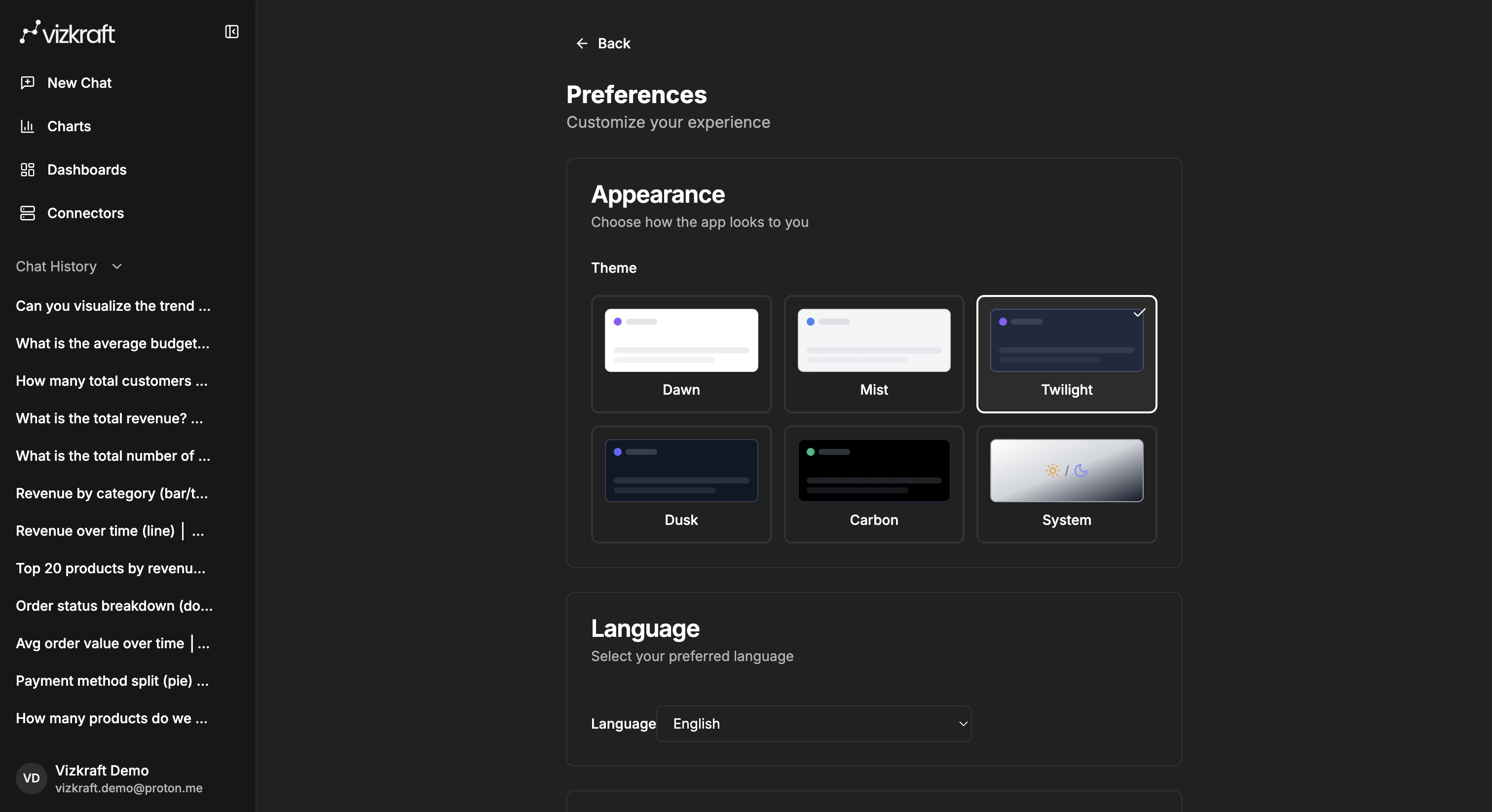
The `Preferences` area lets each user tailor how Vizkraft works for them.
## Update your preferences
In the app, customers can update:
* Theme
* Language
* Slack connection settings
## Theme and language
Use theme settings to choose how the app looks to you, and language settings to select the language you want to use throughout the workspace.
 ## Slack in preferences
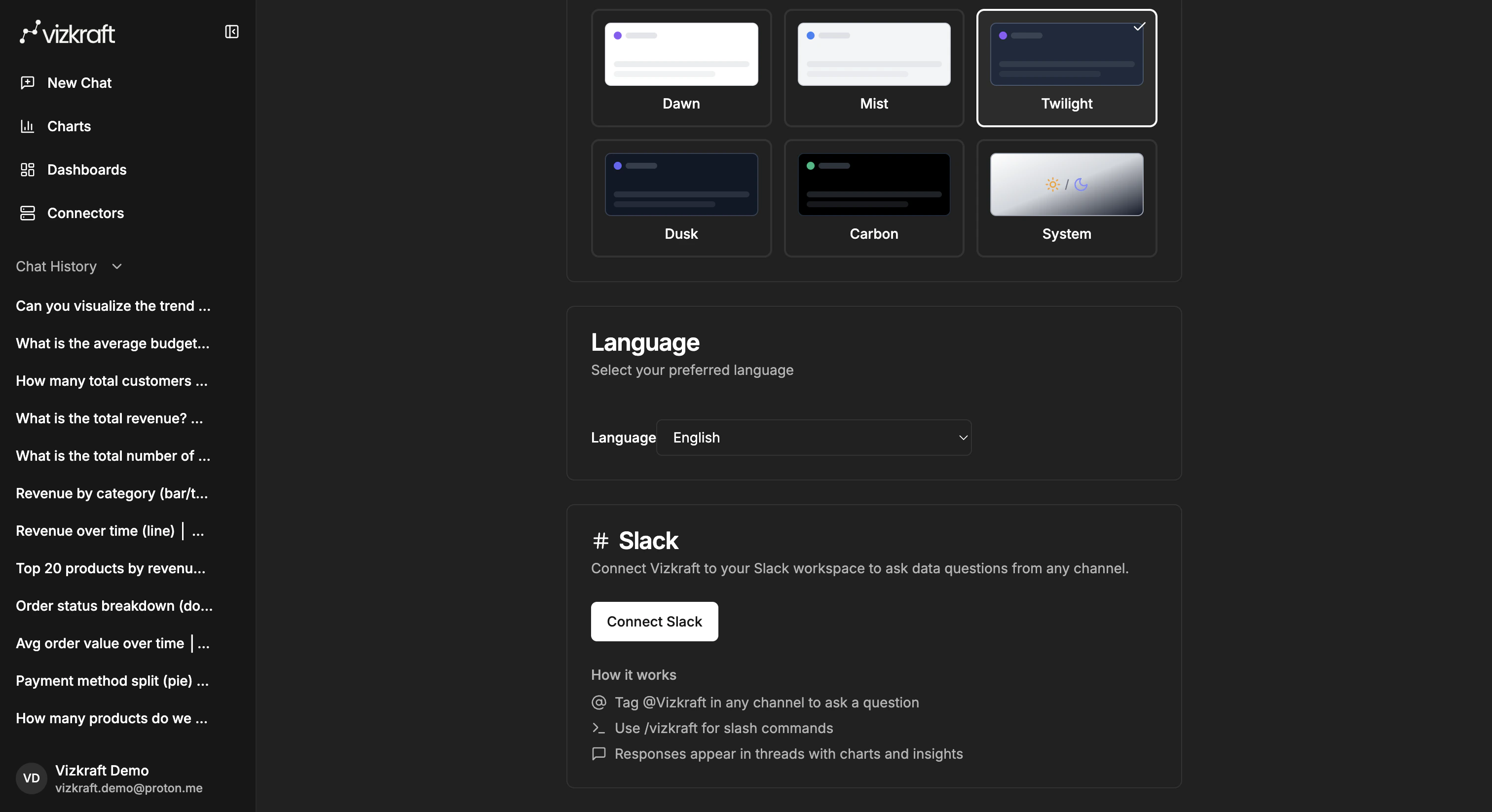
If Slack is enabled for your workspace, the `Preferences` page is where you manage your Slack connection.
From this card you can:
* Start the Slack connect flow.
* Confirm which workspace and Slack account are linked.
* Choose a default connector for Slack.
* Disconnect your own Slack account.
* If you are an admin, remove the Slack app from the workspace for your organization.
For the full Slack workflow, go to [Use Vizkraft in Slack](/guides/use-vizkraft-in-slack).
## Slack in preferences
If Slack is enabled for your workspace, the `Preferences` page is where you manage your Slack connection.
From this card you can:
* Start the Slack connect flow.
* Confirm which workspace and Slack account are linked.
* Choose a default connector for Slack.
* Disconnect your own Slack account.
* If you are an admin, remove the Slack app from the workspace for your organization.
For the full Slack workflow, go to [Use Vizkraft in Slack](/guides/use-vizkraft-in-slack).
 ## Other account areas
Depending on your workspace plan and permissions, your profile menu can also provide access to billing and usage pages.
### Usage
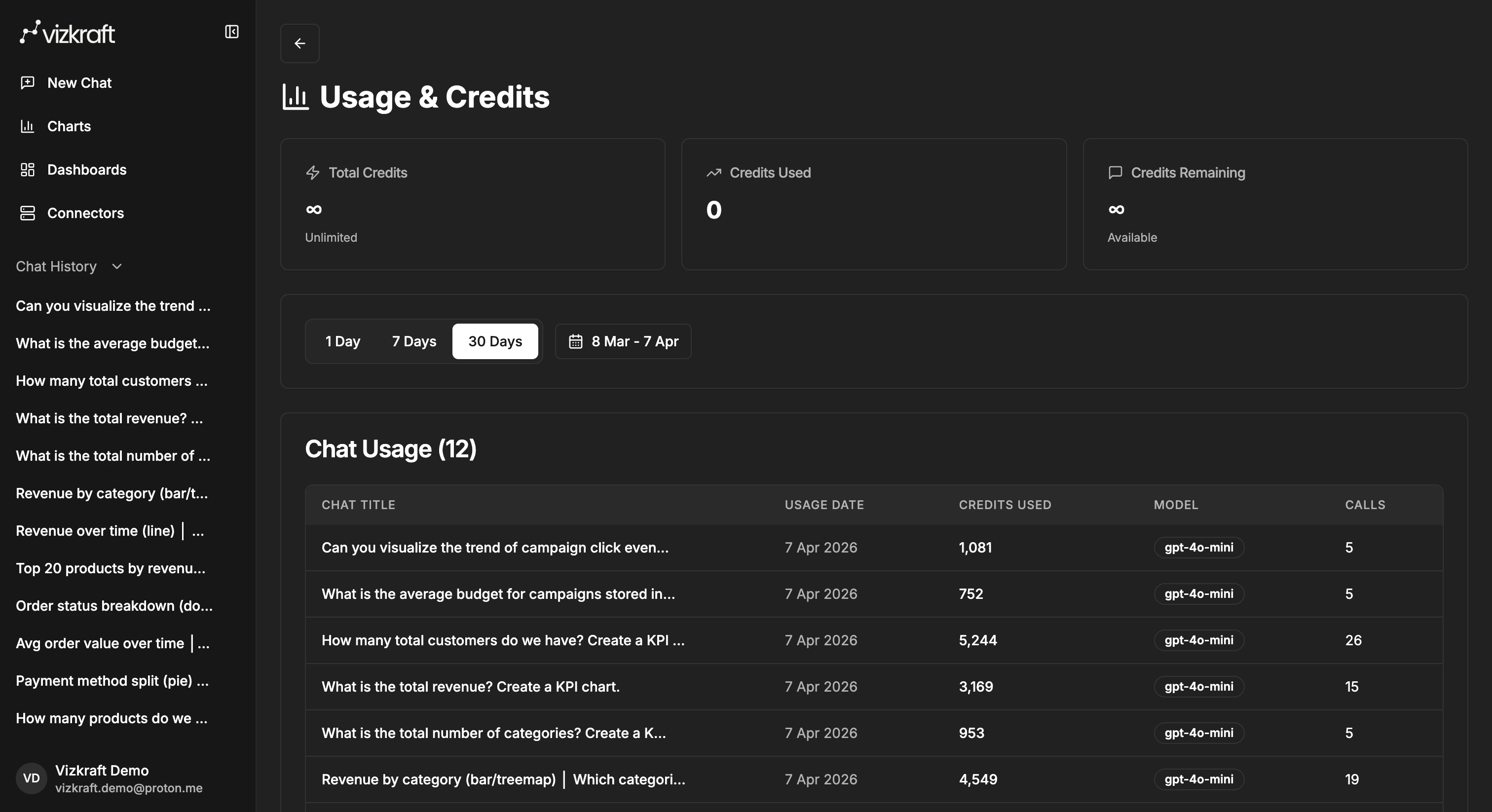
The usage page helps you monitor credits, recent chat activity, and time-based usage trends.
## Other account areas
Depending on your workspace plan and permissions, your profile menu can also provide access to billing and usage pages.
### Usage
The usage page helps you monitor credits, recent chat activity, and time-based usage trends.
 ### Billing
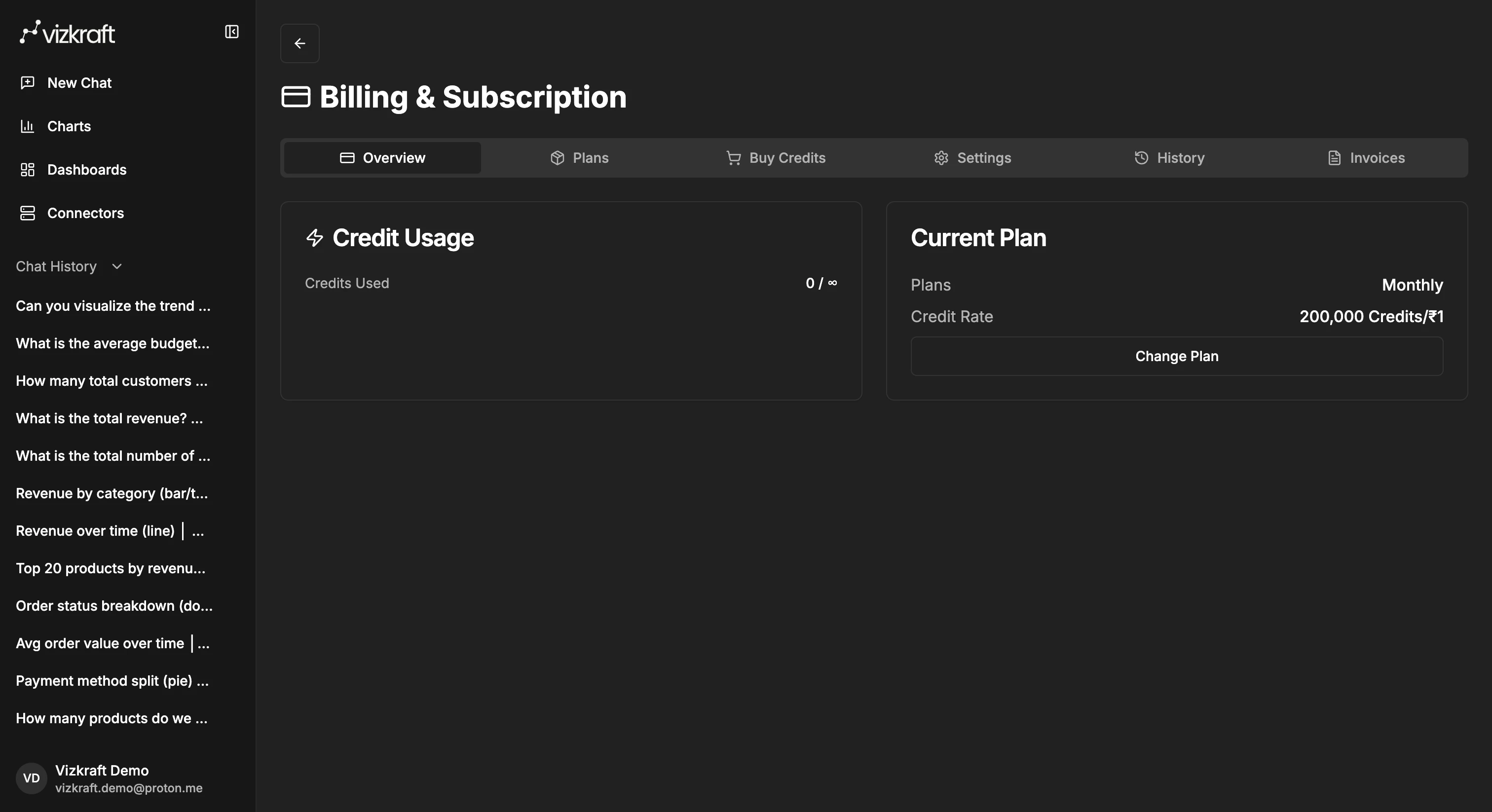
The billing area is where customers can review their current plan and subscription-related settings.
### Billing
The billing area is where customers can review their current plan and subscription-related settings.
 ## Best practices
* Pick a default Slack connector only if one source is used for most Slack questions.
* Keep connector names clear so they are easy to recognize in both the app and Slack.
* Use the web app for deeper chart editing and dashboard work, even if the first question started in Slack.
## Best practices
* Pick a default Slack connector only if one source is used for most Slack questions.
* Keep connector names clear so they are easy to recognize in both the app and Slack.
* Use the web app for deeper chart editing and dashboard work, even if the first question started in Slack.