

What a dashboard includes
Each dashboard can include:- Multiple saved charts
- A flexible layout with drag and resize controls
- Dashboard-level filters
- Saved views
- Export options
- Suggested dashboards that can be kept or dismissed
Where dashboards fit in the workflow
The usual path is:- Ask a question in chat.
- Save the charts you want to keep.
- Create a dashboard.
- Add saved charts and arrange them.
- Apply filters or save views for repeat use.
What you can do from the dashboards page
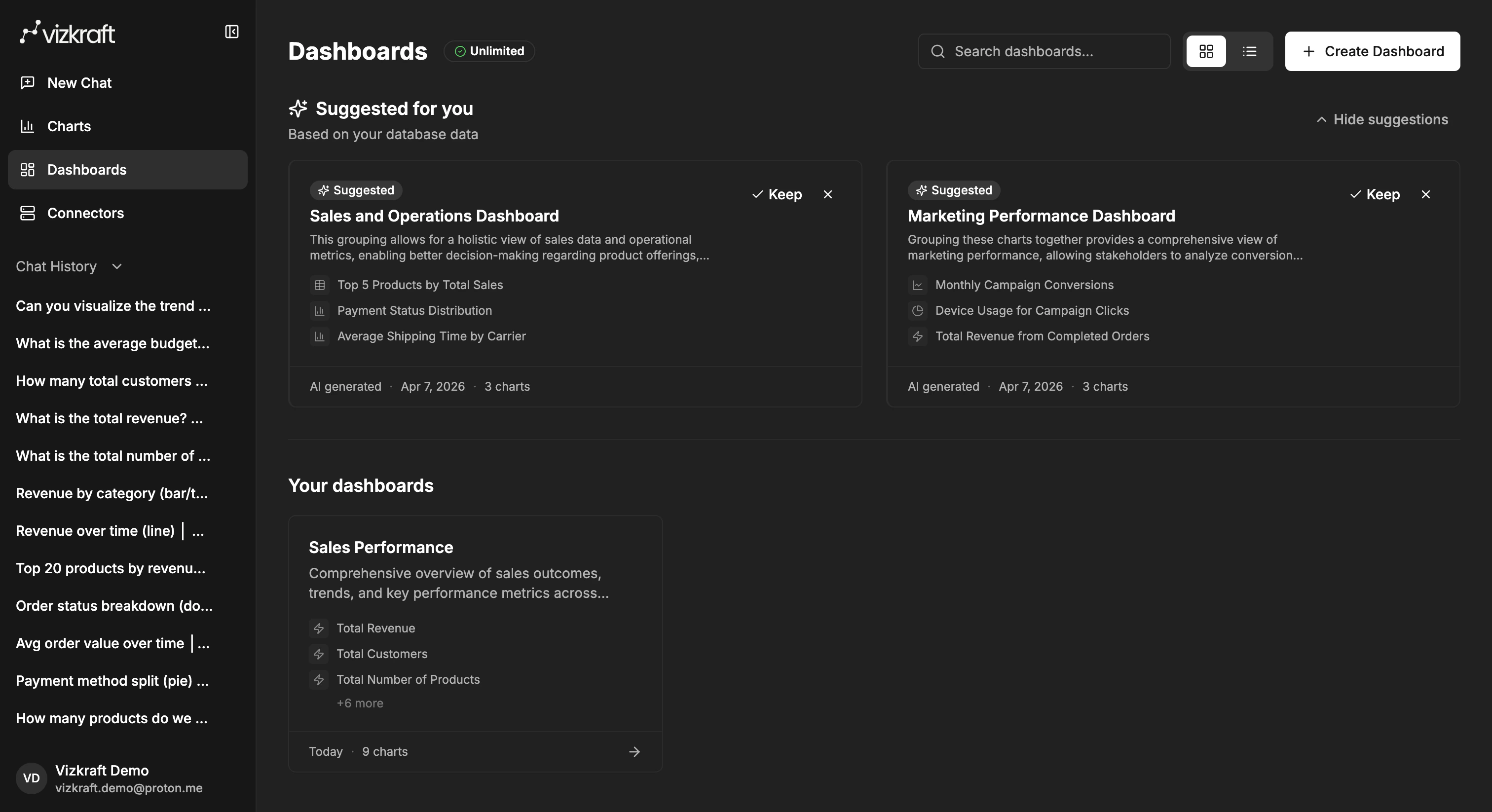
The dashboards library is where you:- Create a new dashboard.
- Search existing dashboards.
- Switch between card and list views.
- Open, edit, or delete dashboards.
- Review suggested dashboards separately from your saved dashboards.
What you can do inside a dashboard
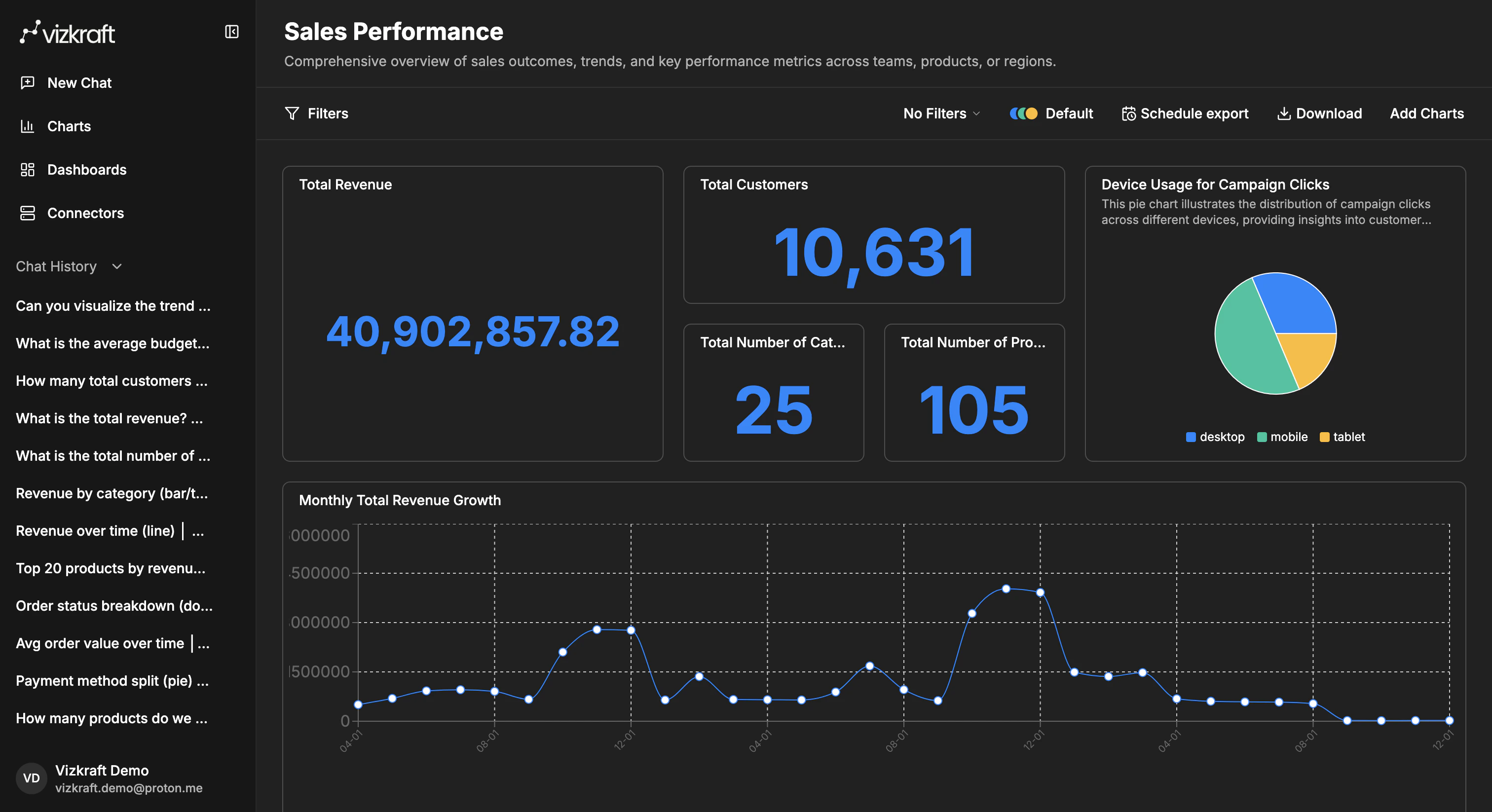
Once a dashboard is open, you can:- Drag charts into a better layout.
- Resize charts to give important visuals more space.
- Remove a chart without deleting it from your chart library.
- Open a larger chart view when you need more detail.
- Refresh charts backed by live data.
- Toggle table view for charts that are easier to inspect as rows.
Views, filters, and exports
Dashboards support more than layout alone. You can also:- Apply dashboard-level filters.
- Save filtered dashboard views.
- Schedule exports.
- Download the dashboard as PNG or PDF.
Suggested dashboards
Suggested dashboards appear in the dashboards library when Vizkraft has analyzed your connector and prepared recommendations for you. From there you can:- Keep the dashboard and add it to your collection.
- Dismiss the suggestion if it is not useful.
Best practices
- Keep one clear business question per dashboard.
- Use chart titles that make sense without extra explanation.
- Save views for recurring stakeholder questions.
- Use filters for audience-specific versions instead of duplicating the whole dashboard.