

Dashboard filters
Dashboard filters let you narrow the data shown across the charts in a dashboard. You can use filters to:- Focus on a region, team, customer segment, or product line.
- Limit the dashboard to a specific time period.
- Create stakeholder-specific slices without building a brand new dashboard.
How filters work
Filters are added from the dashboard itself. Vizkraft groups available filter columns by connector so you can tell where each filter comes from. As filters are applied, charts that are affected can reflect the updated slice of data.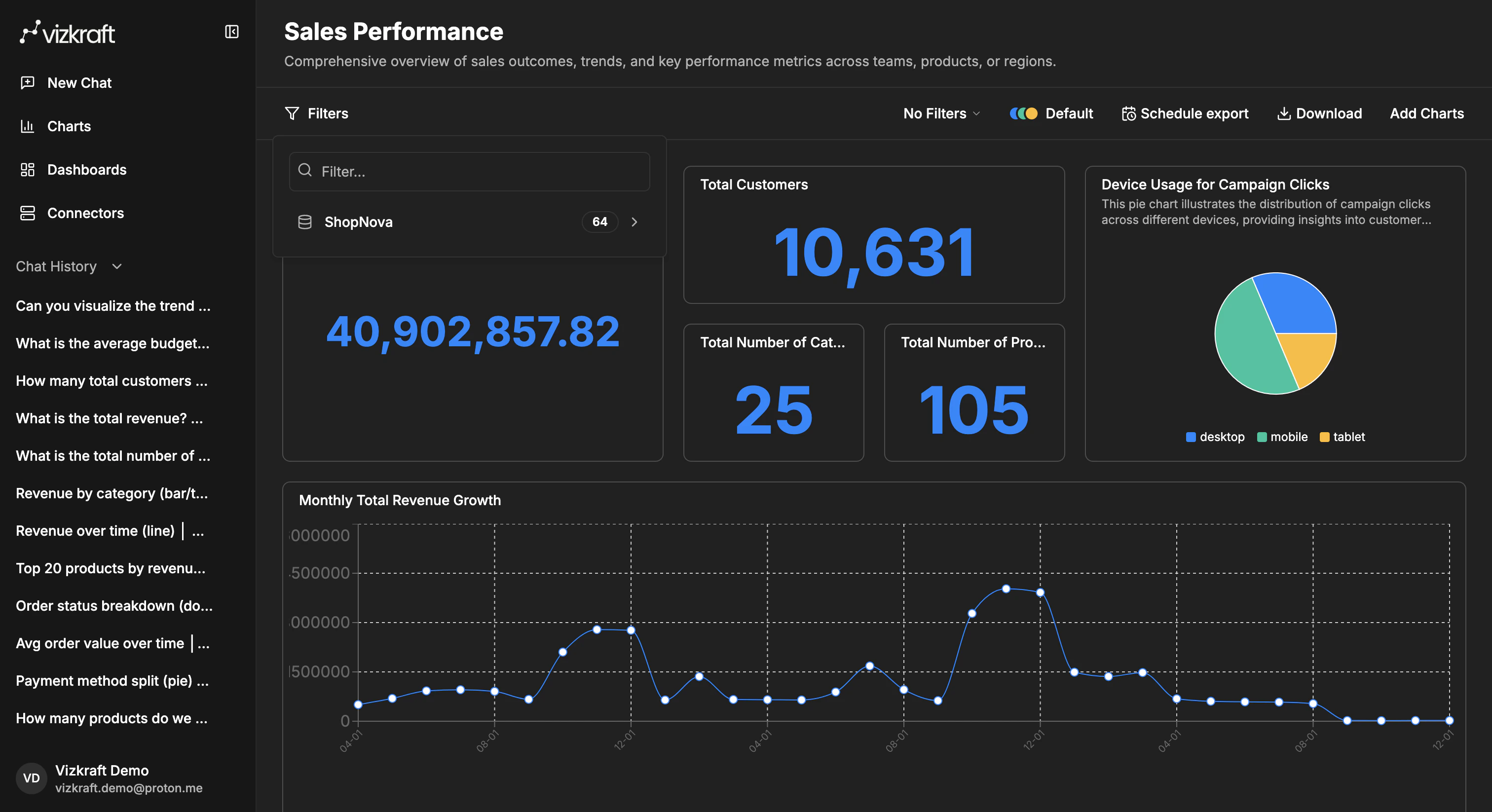
AI filters
Instead of picking columns manually, type what you want in plain language using the AI filter input at the top of the dashboard.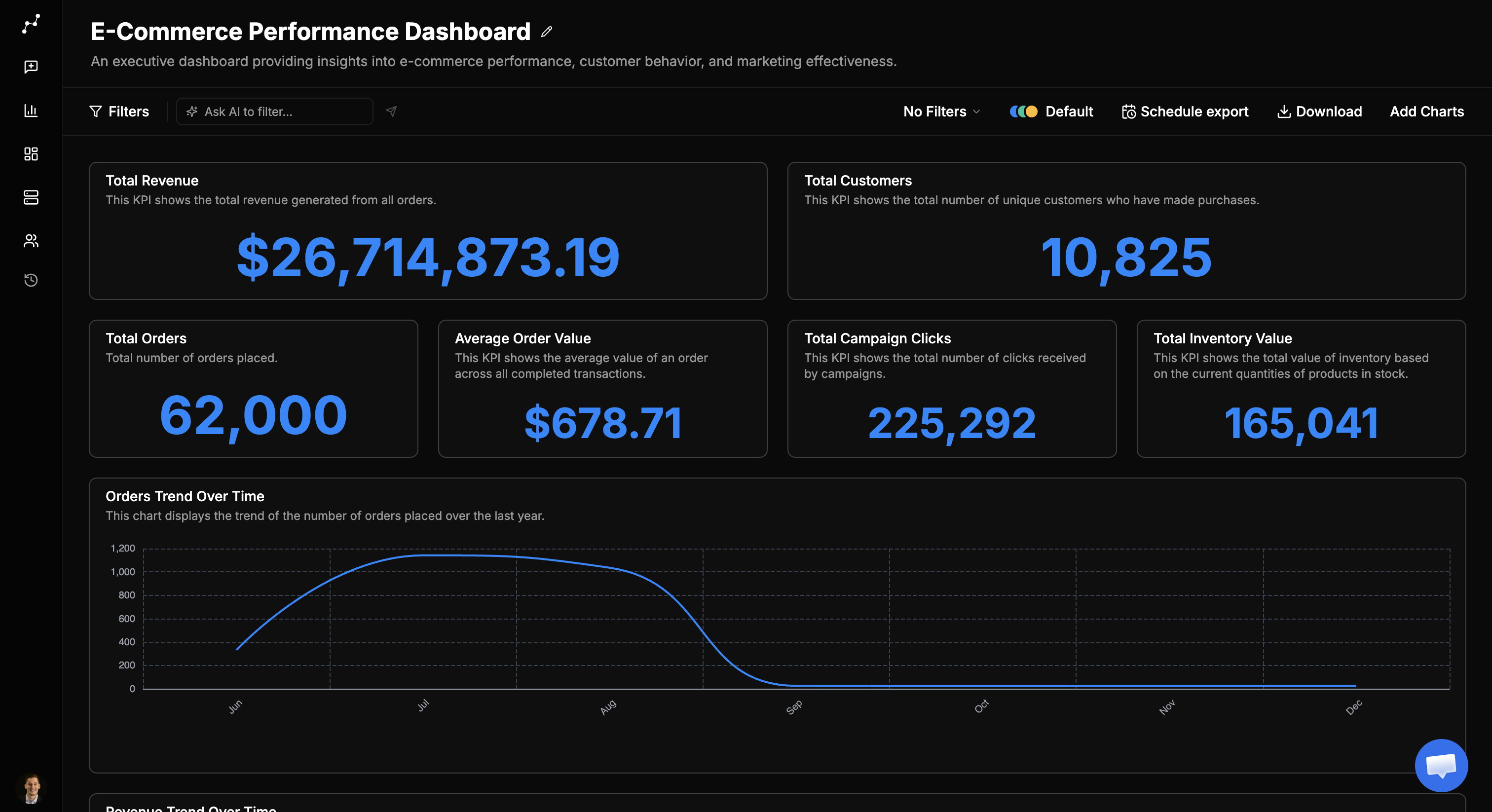
- Last 90 days only
- Region equals North America
- Show enterprise customers with revenue above 100k
- Submit a new filter query to refine the slice.
- Open History to re-apply a previous AI filter.
- Clear AI filters to return to manual filter controls.
Smart filters
Smart filters are AI-suggested filter shortcuts based on your dashboard’s charts and data.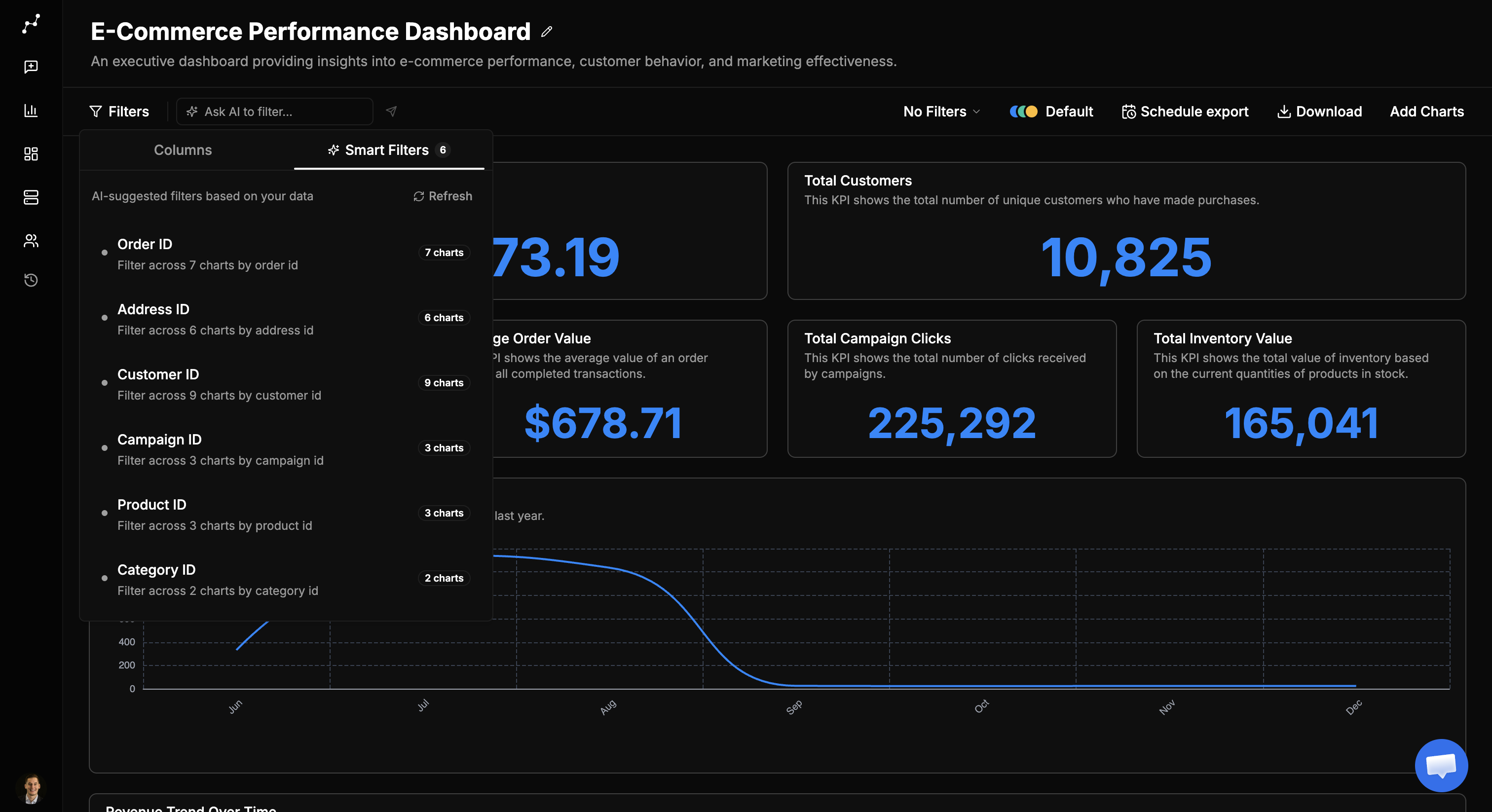
- Open the Smart filters section.
- Review suggested filter badges (for example, a high-value segment or recent time window).
- Click a badge to configure and apply it.
- Use Regenerate smart filters if your dashboard layout changed or you added new charts.
Save a dashboard view
Use saved views when the same dashboard needs multiple versions. Saving a view preserves the filter state so you can return to it later without rebuilding the setup by hand.Example: campaign performance dashboard
Imagine you have aCampaign performance dashboard and you add campaign name as a dashboard filter.
You could then create saved views like:
Spring sale 2025Holiday retargetingBlack Friday launchSummer clearanceAlways-on brand campaigns
Schedule exports
If your workflow includes regular sharing, use scheduled exports so the dashboard can be sent automatically on a recurring basis.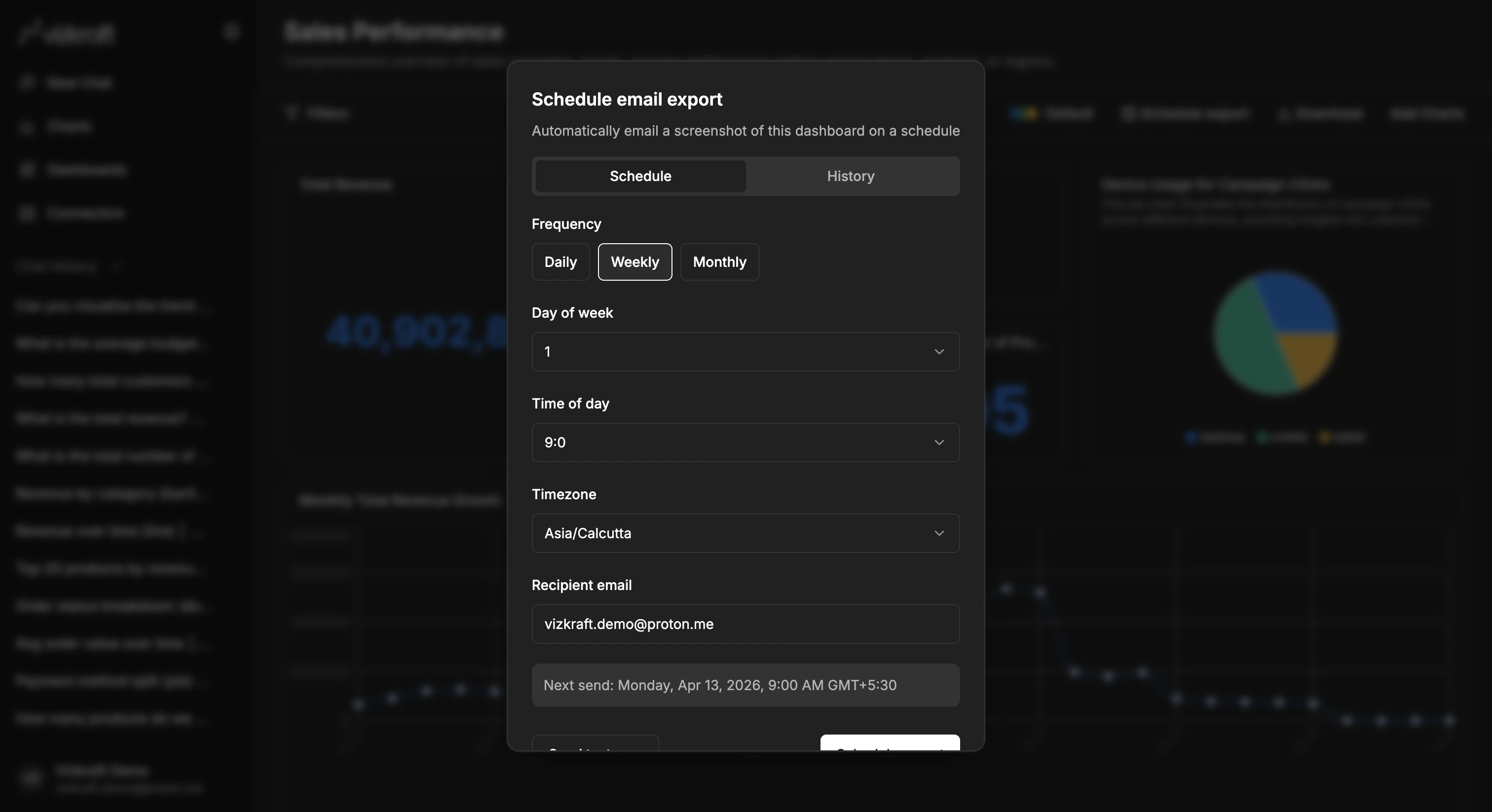
Download a dashboard on demand
You can also download the current dashboard manually as:- PNG
Extra chart controls inside dashboards
From an individual chart inside a dashboard, you can also:- Open a larger chart view.
- Toggle table view.
- Refresh live charts.
- Remove a chart from the dashboard while keeping it in the chart library.
Tips
- Use filters before duplicating a dashboard.
- Try AI filters for quick slices, then save a view when you find a combination you reuse often.
- Regenerate smart filters after adding or removing charts.
- Save views with names that explain who or what they are for.
- Export after applying the exact filters your audience needs.