

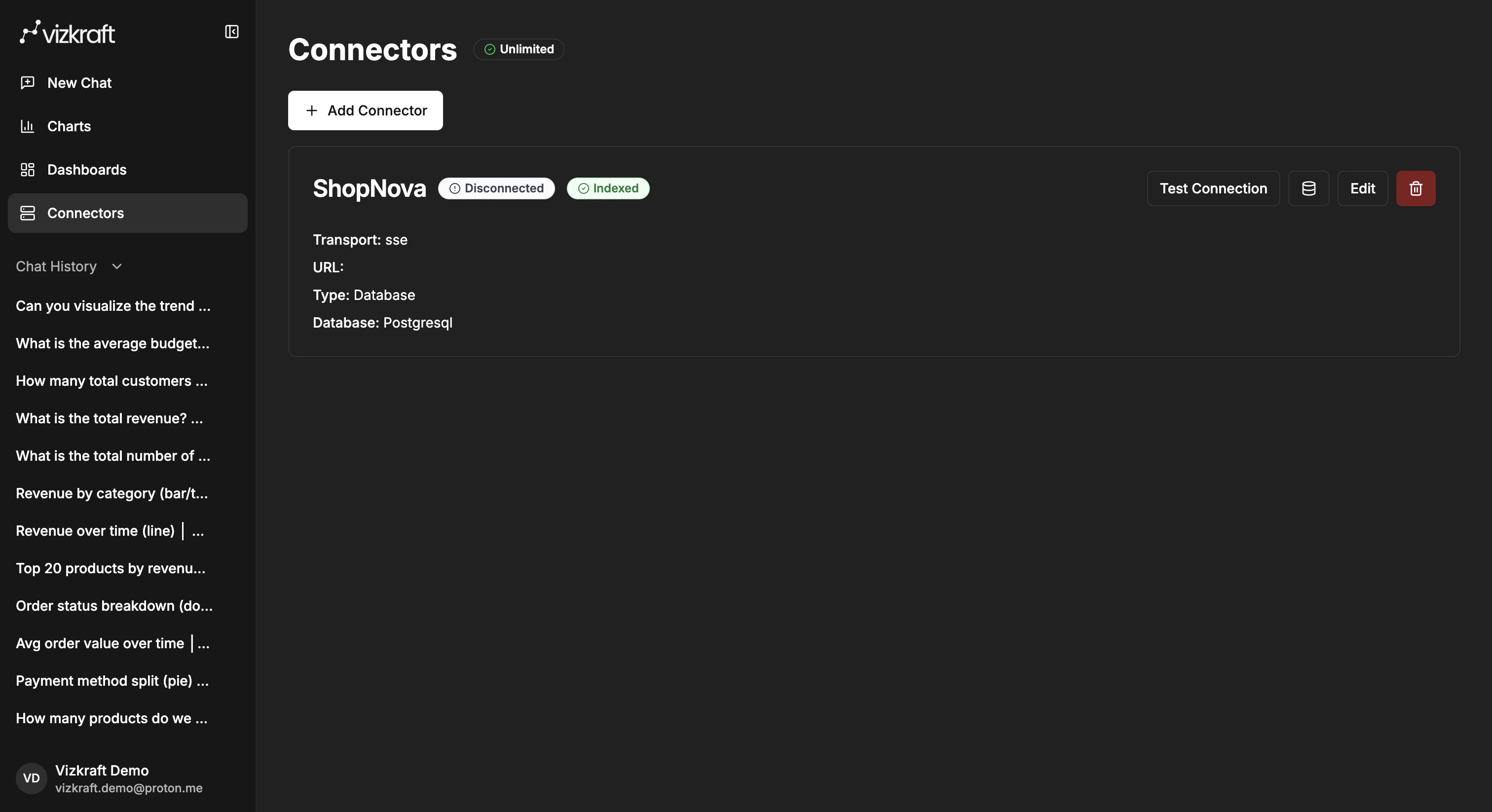
Connectors area to add the data sources your team wants to analyze.
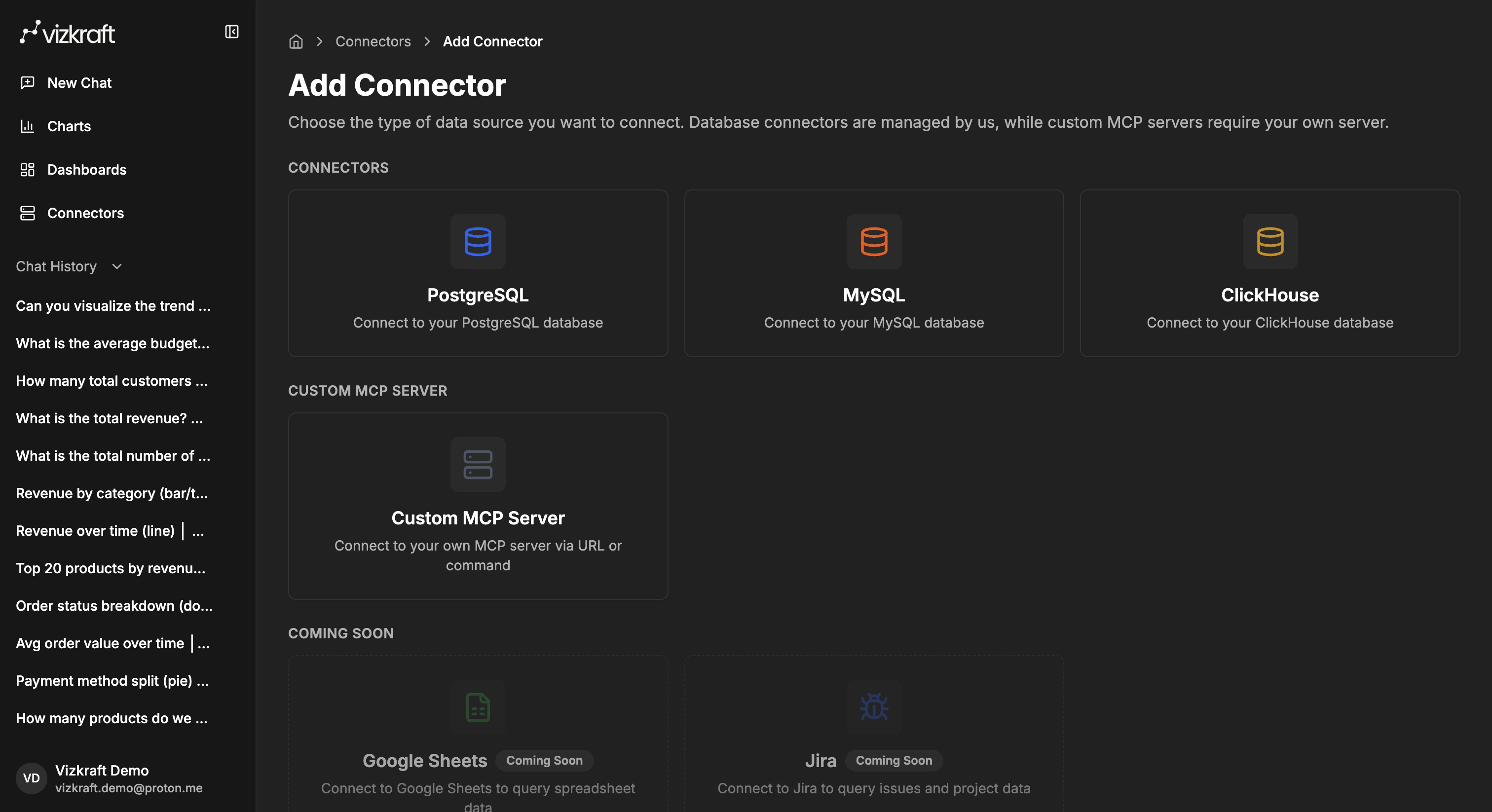
Connector types available in the app
Vizkraft currently lets customers add:
Some connector types may appear as coming soon in the UI. Those are not available until they are enabled in your workspace.
Add a new connector
- Open
Connectors. - Select Add connector.
- Choose the connector type you want to add.
- Enter the connection details shown in the form (or authorize HubSpot via OAuth).
- Test the connection.
- Save the connector.
Saving a SQL or MongoDB connector automatically starts an initial indexing run, which uses one slot from your monthly indexing-runs allowance (Pro 5/mo, Business 20/mo, Enterprise unlimited). You can see your remaining runs on
Profile → Usage. See Indexing runs and your plan for the full breakdown.Managed database connectors vs HubSpot vs custom MCP
Managed database connectors
Use PostgreSQL, MySQL, ClickHouse, or MongoDB when you want Vizkraft to connect directly to a supported database. This is the fastest path if your data is already in one of these systems. After saving, open Indexing to let Vizkraft read your schema. See Index your data.HubSpot CRM
Use HubSpot when your questions are about CRM objects — contacts, companies, deals, tickets, and their properties. HubSpot uses an OAuth connect flow and a catalog sync instead of SQL indexing. See HubSpot CRM sync.Custom MCP server
Use this when your team already has an MCP-compatible server or when you want Vizkraft to access tools beyond a single managed connector.Connector row actions
Each saved connector exposes quick actions from the connectors list:
Open Memory or Evaluation from the ⋯ menu on the connector row.
What to name a connector
Choose names that help people pick the right source in chat. Good examples:Production PostgreSQLMarketing warehouseHubSpot CRMFinance MCPCustomer support analytics
Edit or retest an existing connector
From the connectors list you can:- Open a connector to review its status.
- Edit its settings.
- Run another connection test after credentials or endpoints change.
- Jump directly into indexing or catalog sync for supported sources.
- Open memory or evaluation from the ⋯ menu.
Use one or more connectors in chat
After connectors are saved, they become available in chat. You can:- Enable a single connector for a focused question.
- Enable multiple connectors when the answer needs information from more than one source.
- Switch connectors between questions without rebuilding the connector itself.
Best practices
- Create one connector per stable data source rather than reusing a generic catch-all name.
- Test the connector before saving it so your first chat session starts smoothly.
- If a connector feeds charts or dashboards for multiple teams, give it a clear business name.
- Run indexing or catalog sync after setup for the best suggestions and answer quality.
- Review Connector memory after your team has asked a few questions.
Continue with indexing or CRM sync
- SQL and MongoDB connectors → Index your data
- HubSpot connectors → HubSpot CRM sync