

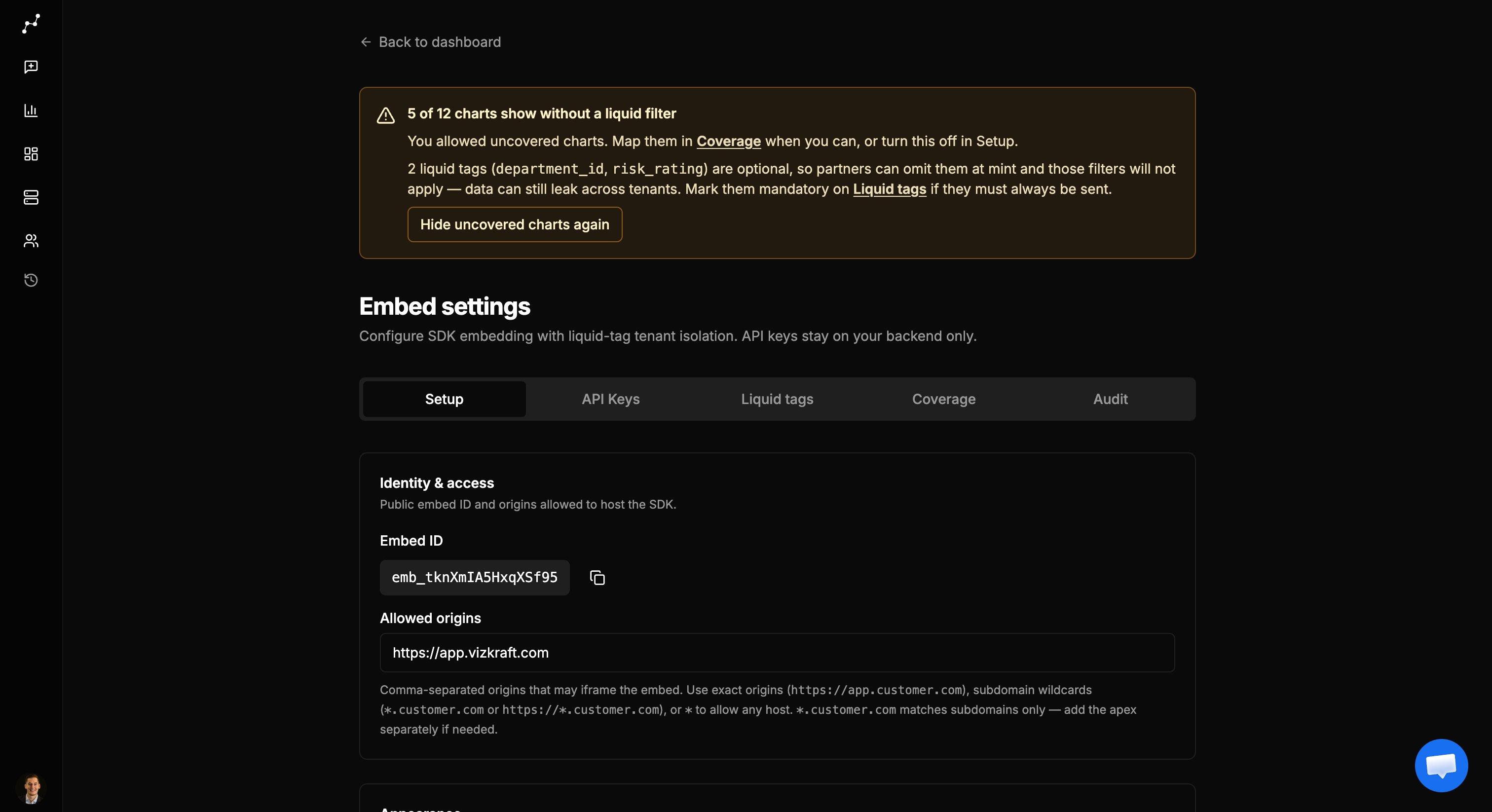
Enable embedding
- Open the dashboard you want partners to embed.
- Open Embed settings.
- Enable embedding if prompted.
- Copy the Embed id (
emb_…) for your developers.
Allowed origins
Comma-separated hosts that may iframe the embed:- Exact:
https://app.customer.com - Wildcard subdomain:
*.customer.com - Any:
*(demos only)
API keys
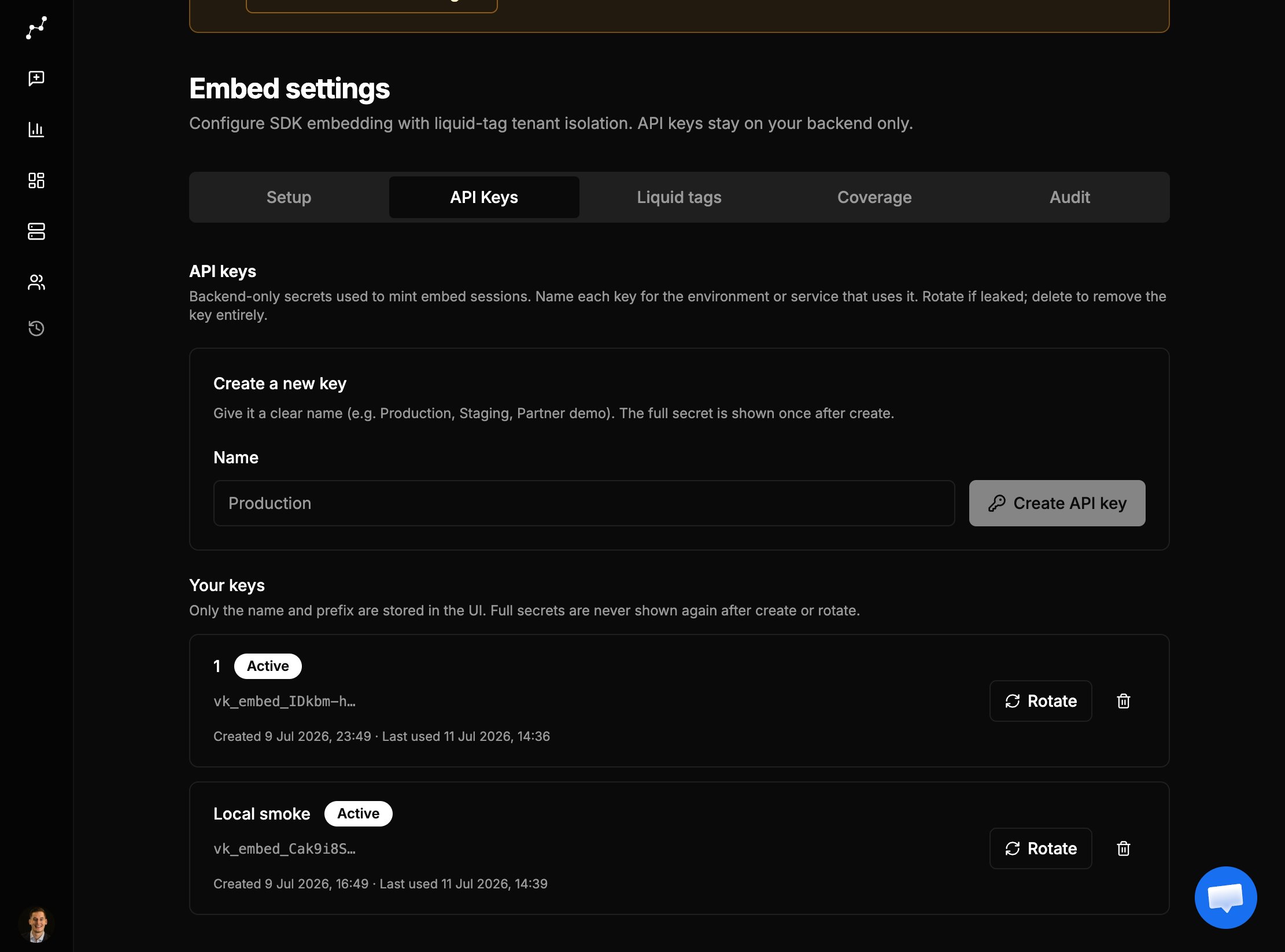
- Open the API Keys tab.
- Create a named key.
- Copy the secret once from the banner—store it on your backend only.
- Rotate if leaked (old key is removed).
- Delete removes the key entirely.
Appearance and viewer options
UI theme, chart color theme, loader, and visibility toggles (title, filters, download, uncovered charts) are documented in Viewer options.Liquid tags and coverage
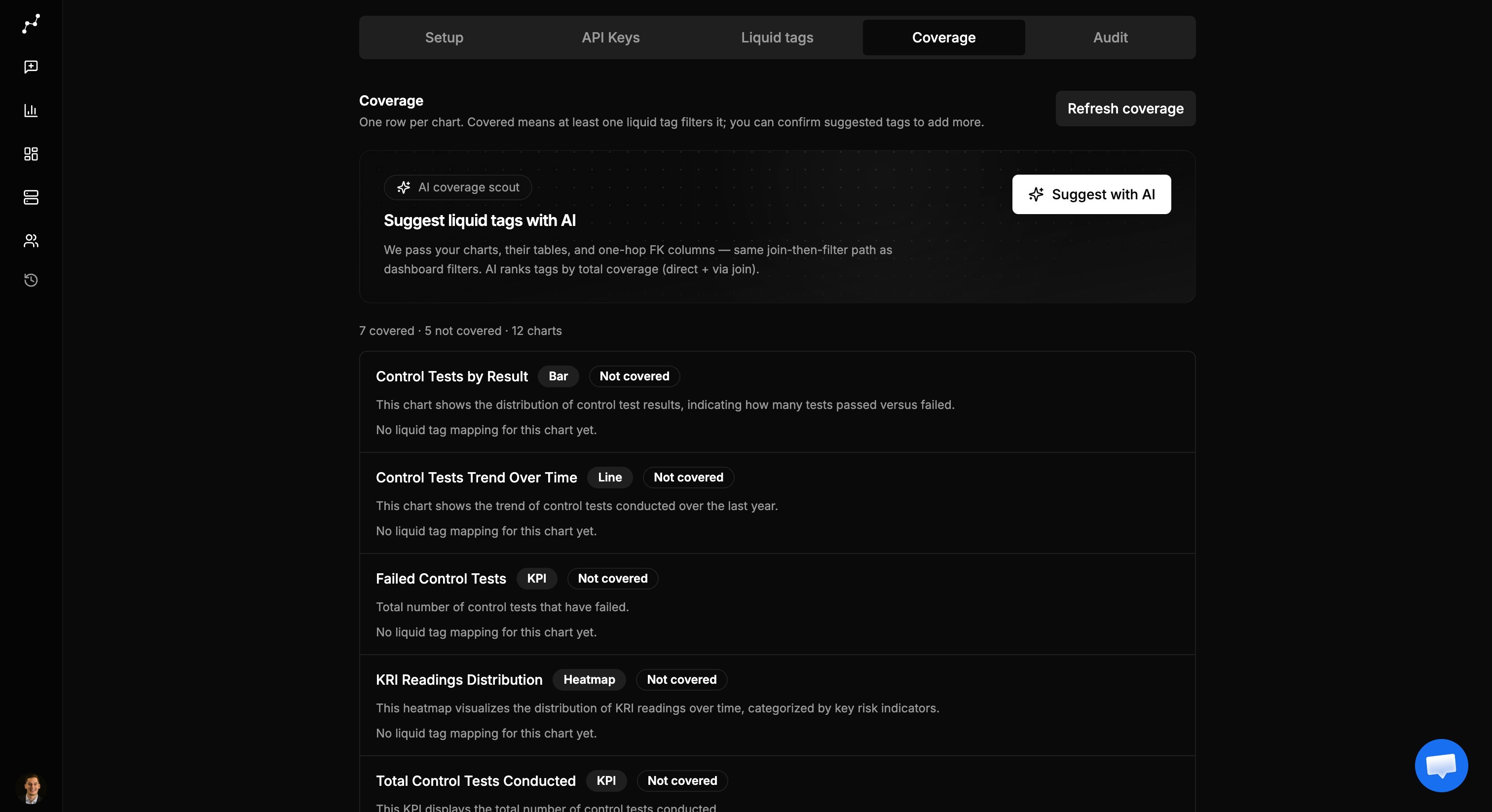
Add tenant dimensions and confirm per-chart mappings on the Liquid tags and Coverage tabs. Full guide: Liquid tags and coverage.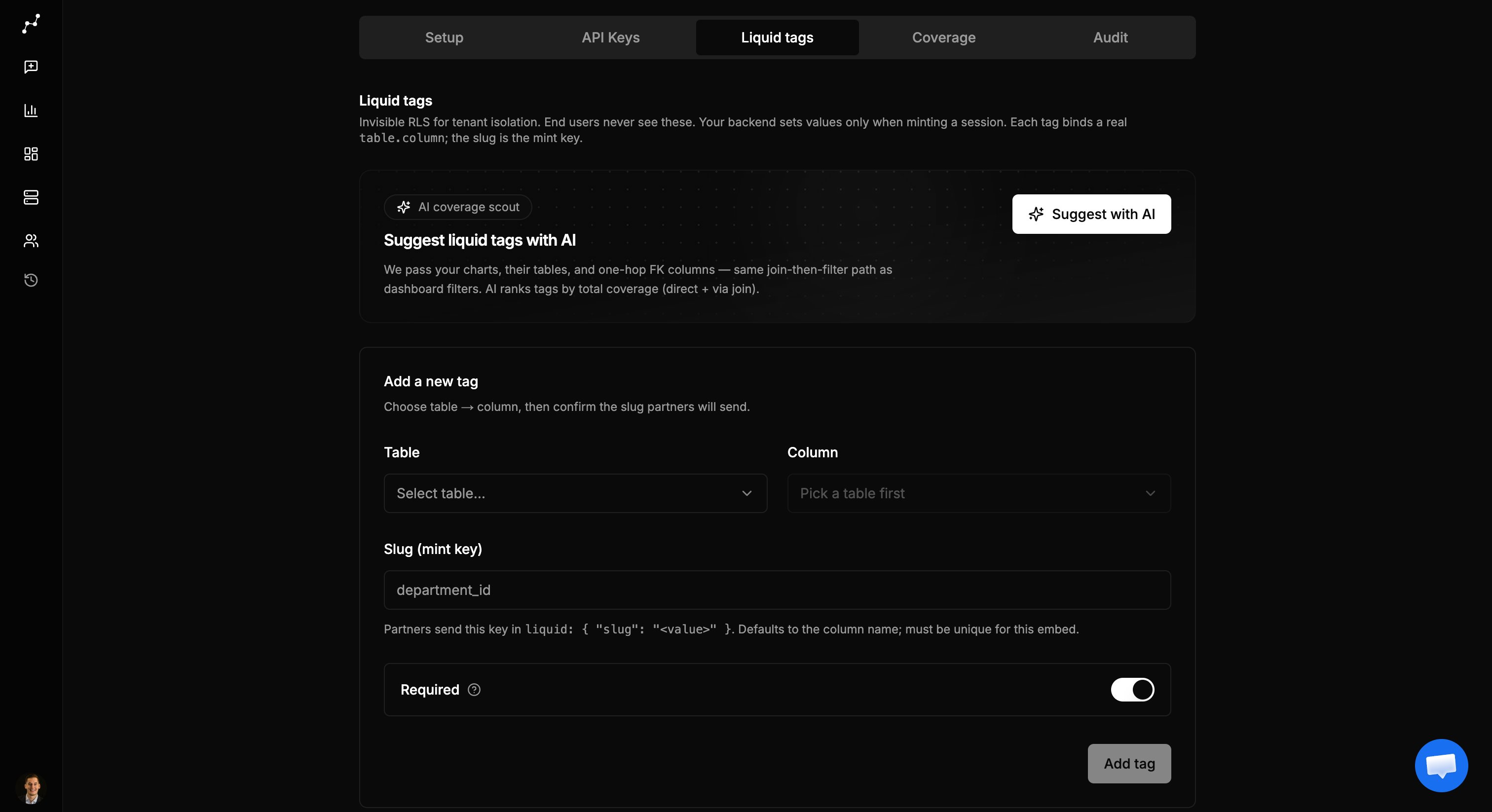
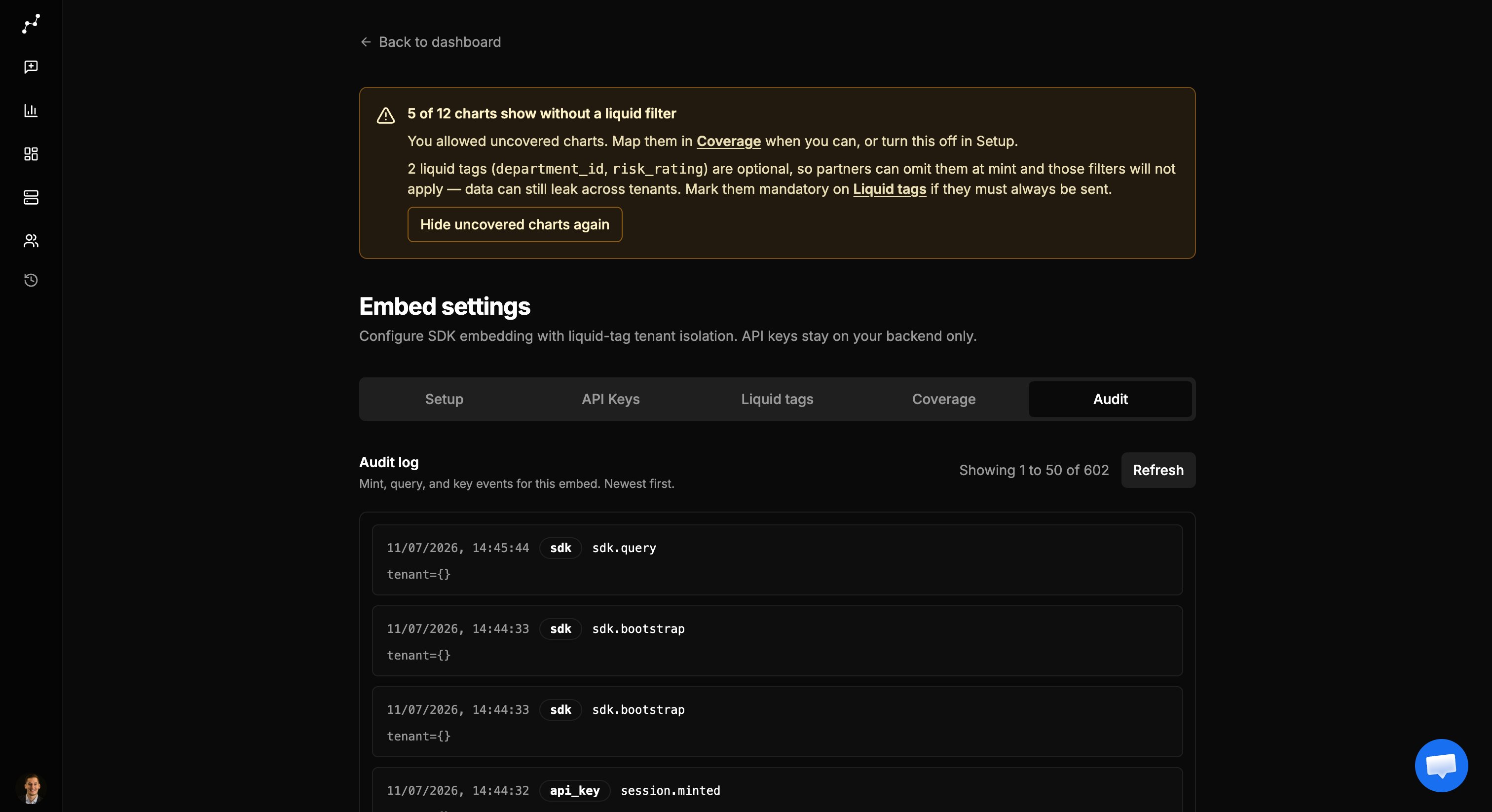
Audit
Checklist
- Enable embedding
- Set allowed origins
- Choose themes and viewer options
- Add mandatory liquid tags
- Confirm coverage (Direct / Via FK)
- Leave uncovered charts hidden unless you accept the risk
- Create an API key for the backend
- Share the Developer guide with eng
- Optionally verify in Partner demo
Related
- Security
- Share links — human URLs (separate from SDK embed)